Showing posts with label julian gold. Show all posts

Monday, 24 January 2011

Bad code go away now

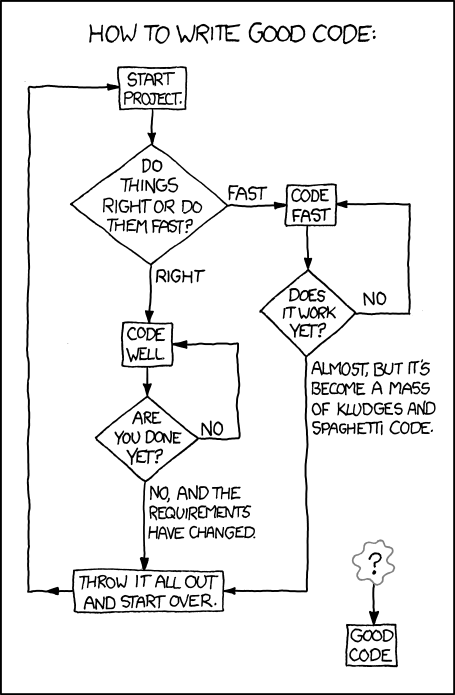
Some days, I get so wrapped up in Moviestorm as a movie-making tool that I forget it's a piece of software made out of hundreds of thousands of lines of hand-written code. And even once we've got those lines of code to actually do what we want them to do, that's not the same thing as making them do it efficiently. This cartoon from xkcd explains why.


So every often, we go through the code and see if we can figure out what it's actually doing. We find loads of places where it's taking two steps forward and one step back, and try to see if we can make it just take one step forward instead of doing the hokey-cokey all over the place. Here's an email Julian sent me at the end of last week which will give you an insight into what this actually entails.
Well, I've had fun this week. I did some profiling and found that there were some very odd things going on. Why, for example, were there over 160,000 bounding boxes in a particular - fairly simply - scene? Why did the performance problems and crashes only happen when I switched views? And the like...

You will be glad to know that I have answers to both of these and more. A few accidents, going back to last summer, resulted in some innocuous code being checked in. Innocent it looked. But it had the side-effect of adding multiple copies of objects to the scene when it was loaded or changed view. If you stayed in the set workshop though, you'd never see it. And in fact, I found two completely different areas of code where this was happening, leading to a seriously exponential over-allocation, gobbling of RAM, and also CPU cycles. I have removed the first offending item as it was an accident; and I have added extra bullet-proofing to stop the second happening.

Thirdly, those 160,000 boxes came about as a result of some debug code that was used to test our snapping sockets. When you stacked objects, the collision detection system got a bit confused trying to partition things and got stuck in recursive hell. The code was unused anyway, and I have removed it.

Lastly, I have made further modifications - I have speeded up some of the critical loops in the code, and also cut out a bunch of redundant work. The result is that movies load a bit faster, take significantly less memory, and render faster. We think that the performance reduction happened in the summer for release 1.4.1 - we had a few reports of sluggishness. If so, we should be nimbler now than we were then. You should see the results for the next release of the product.

Toodle pip!
If that made no sense, here's a translation for non-programmers. "Unused code made it go slow when you did stuff. Took out kludges & spaghetti and made it better."

Go Jules!

Monday, 6 December 2010

Julian's psychedelic sniperscope

Jules is a master of many puppets (or is that a pastor of many muppets?), and one of his minions is the Moviestorm post-processing filter system. When he gets a spare moment (ahahaha), he might actually have a rummage around and see what's missing in this rather awesome toolkit of image processing, and implement it. So here, from him to you, is an entirely new set of visual functions to apply to your movie, hardware allowing. In no particular order (ie alphabetical):
  • Autotoon. Like Cel Shading, only as a post-process. It's not quite as crisp'n'dry as the real thing, but if you only want one or two clips rendered 'toon-stylee, this will help.
  • Binoculars. Wow! It's like looking through binoculars. Sort of.
  • Binoculars (night). As above, but with fancy and gratuitously expensive night-vision goggles, and Moviestorm gives you it for free!
  • Distort. Like looking through an old window. Or alternatively the effect that piece of out-of-date blue cheese that was left in the fridge had on you.
  • Emboss. Grey. With lines. Kinda like you saw in Photoshop, but probably utterly not quite similar.
  • Fisheye. View the scene as if it were on either the inside or the outside of a sphere (choose via the presets). Is this how a fish sees the world? Ask Spongebob!
  • Frost. Brrr! It's frosty here in the U of K. And this filter... well it's more like pressing your face up onto a piece of frosted glass. Though it might depend on which flavour of frosting you were thinking of.
  • Gradient tint. Adds a coloured tint from the top of the screen down, which is all but gone by the half-way point. Could be good for dramatic skies or alien worlds. Three different flavours to sink your synaesthetic teeth into.
  • Overexposed. Replaces your screen with a static image of Justin Bieber. No! Seriously, before you ask for your money back, I'm kidding. Zealously boosts the contrast. Like looking at the heart of a star with a telescope. Three different types of blinding supplied, retinal implants not included.
  • Psychedelia. Can't quite classify this and it gets varying results. But there's quite a bit of black and a lot of coloured lines that are rather pleasing on the eye (presuming you have any left after checking out "overexposed").
  • Radial blur. Like your scene was a watercolour and you span it whilst still drying. You wouldn't catch Cezanne doing that, mind, but perhaps that's all the more reason to try.
  • Sniper. Indulge your fantasy of assassinating Justin Bieber by combining a sniper filter and an overexposed filter. What's that you say? Nasty Jules won't let you combine filters? And there is no Justin Bieber filter anyway? Feel free to make a movie about shooting Jules then.
  • Sniper (night). As above, but with less chance of getting shot back, but much colder too. Let's face it, sniping should be a summer activity.


All of these images are 100% Moviestorm. No other programs or post-processing effects were used to create these screenshots.

So that's filters03 for you. A whopping 13 new effects to help you make the movie you always wanted to, and you can get your hands on them very, very soon. This week, if Father Jules thinks you've been good enough.

Monday, 22 February 2010

Cutting Room View - new and totally redesigned

We give you a pretty good deal with Moviestorm. You can download the core software for free, and we work hard to ship regular updates and improvements. Those updates are also free. Usually, we'll give you a handful of bugfixes, a handful of new content, and a new feature or two. Some updates are bigger than others, of course, but every new release brings something shiny.

We're hard at work on the next big update right now, and it's going to be great. You see, we've made a few changes to Moviestorm's venerable Cutting Room View ... and when I say "we've made a few changes", what I mean is that we've spent months completely redesigning and improving the Cutting Room View, almost from the ground up. Here's how it looks in the current released version of Moviestorm (version 1.2.0.2):


And here's the same movie as it appears in our latest development snapshot.

There's a lot that's changed, so let's go through it one thing at a time.

The timeline
We've given the timeline more room on the screen, so it's easier to see what's going on. The way the tracks are used has changed as well, giving more prominence to the picture track. You'll notice that each item on the timeline has useful additional information. Movie footage clips now show their scene name as well as the camera name (so you'll never have to wonder "which Main Camera is this?" again). We've also added timecodes to the start and end of each clip. It's hard to describe how useful that is until you try it out, but it makes you wonder how you managed without it. The behaviour of objects on the timeline should be more logical, too, allowing you to drag objects to the timeline and have them snap into position, and allowing you to change the order of objects on the timeline without becoming hopelessly confused.

Objects on the timeline have a more logical colour scheme now. Shots from the same camera will share a common pastel colour. If you've added additional cameras, they'll each automatically get their own colour.

The preview window
Yes, it's smaller. That might seem like a step backwards, until you notice the extra button next to the playback controls. That triggers fullscreen mode (an entirely new View which allows you to watch your movie in all its glory, without any buttons and bits getting in the way).


The clip bin
Adding audio or images is easy with the new Cutting Room View. Just drag and drop from the new "clip bin" area to the timeline. The same drag-and-drop functionality is used to add your camera cuts to the timeline. The tab which contains your camera cuts was always pretty awkward. Once your movie gained more than about a half dozen shots, the list became pretty cluttered. Plus, it had those weird invisible '+' buttons. The Movie Footage tab in the clip bin contains all your camera cuts, from every camera in every scene, presented as a much more logical list of thumbnails. Each cut is timestamped so you can see exactly where it came from, and they're grouped according to scene and camera. There's no need to find the hidden button to add a clip to the timeline any more - just drag and drop.

Extra shiny bits
As well as all these improvements, we've also added some brand new features. The first is the Transitions tab, which allows you to choose from a list of different transition types for your shots. If you're like me, you'll use a straight cut most of the time. That's fine: just drag your clips to the timeline and Moviestorm will use a straight cut by default. Occasionally, though, you'll want to use a different transition - maybe a cross-fade, or a fade-through-black. For the first time, you can now do that within the Cutting Room View. Just drag the new transition onto the timeline. It'll snap into position between your two clips and will apply the appropriate transition in real-time.

Incidentally, that means that Moviestorm is playing back two pieces of action at the same time, and overlaying one onto the other (and that's real-time 3D events, not pre-rendered video clips). That's some seriously clever coding from Julian, Conor and the rest of the Engineering team.

Finally, and for the really fun eye candy, we're ready to release the filters which we've teased you with for so long. Filters are dragged onto clips, and can apply some subtle (and not-so-subtle) changes. Your external video editor might already have some filters, of course, and there's nothing to stop you using them in the same way you always have. The great thing about applying the filters within Moviestorm, though, is that we can use the 3D data from the movie to do things that a 2D filter simply couldn't achieve. Moviestorm's Fog filter, for example, will apply a stronger fog distortion the further away an object is from the camera.


So. That's the new Cutting Room View. We're still working on the final bits of tweaks and polish, but we're pretty confident that it'll be ready for the next major Moviestorm Release - version 1.3.

Big thanks - as always - to the members of the Moviestorm Pioneers Club, who have been helping us out with their opinions, suggestions and comments throughout the redesign process.

Thursday, 12 November 2009

Take thirty-seven... action!

Over in the forums, there have been some discussions about performance issues, particularly why things sometimes run slowly with relatively simple sets, no mods, few characters, etc. Julian posted this detailed reply, which we figured was worth reposting in its entirety.

As you may know, it's my job to keep tabs on Moviestorm performance. My tests this week have been on what we call "retakes" - this is the process by which we turn the commands that you give our objects into actual chains of animations, and it is quite a time-consuming process. For example, consider a walk - it consists of many different snippets of animations stitched together in as seamless a fashion as possible. When you move a target point, the walk gets recalculated. In fact during a retake everything is recalculated, and this may seem like overkill; if you only change something near the end, why do you have to process the entire scene? Well the answer is that determining which bits of the scene are (un)affected by which operations can be a more time-consuming process than recalculating the lot anyway! It can also be more error-prone, and more complex (hence bug-prone too). So for now, when we retake (and we retake a lot), we do the entire scene, from time = 0 to the end of the scene.

In order to mitigate the cost of the retake, we've put some effort into making sure we are reducing the amount of recalculation done. This is done "locally" to each activity (rather than globally as above). One of the areas this is harder to optimise is when the activity depends on some resource - which could be eg a texture or a data file lurking on your hard drive. In order to be robust, we have to put checks in to see if these resources have changed - so if you change an animation (directly or indirectly), that change propagates into your scene. Large (ie long) scenes result in lots of resources, and hence Moviestorm spends a lot of time in the retake gathering info about resources. At the moment, for reasons I won't bore you with the details of, this is more costly than we'd like. In essence there are multiple file systems in place, and they all have their costs. We intend to fix the inefficiencies as soon as we can; but they are actually quite insidious because we do a lot of file-related activity and so the changes need to be made in lots of places. But the good news is that we are on the case, and with v1.2 due out soon, we'll have time to take stock of these issues, hopefully to come in a subsequent release asap.

Thursday, 25 June 2009

Moviestorm visual effects: making it wet

While we've been showing you some of the visual effects filters Julian's been working on, he's been experimenting with combining them to produce some strange, interesting and unusual results.

This is what happens when you make your movie black and white, add in some noise, throw in some rain, and put some ripple distortion on. It looks like an old movie, shot outdoors, and there's water all over the lens. Or looking out through a wet window onto a rain-soaked world. Or something. I'm sure you'll think of a way to use this kind of effect.


The possibilities for weird and wonderful visual styles from combining the different filters is huge. I can't wait to get these off Julian's desk and into a version I can play with, but it looks like that'll be quite a few weeks yet. Until then, I'll be as impatient as you!

Oh, wait, did we say rain? Yeah, there's rain too.

Wednesday, 24 June 2009

Moviestorm effects 11: Night

You may remember, how in the dim and distant past, the first filter we showed you was night vision? Well, here's the companion to it, the night filter. Many night shots aren't actually shot at night, for all sorts of reasons. They're shot in daylight and then tweaked to look like night. This gives everything a blue tinge, and then changes the luminosity to match human night perception. You can adjust the intensity to go from really dark to post twilight or full moon.


Anyway, here's a recap of the visual effects filters we've shown you so far:

  1. Night vision
  2. Sepia toning
  3. Black and white
  4. Greyscale with red boost
  5. Halftone
  6. Negative
  7. Glow
  8. Bloom
  9. Camera shake
  10. Ripple distortion
  11. Night

Tuesday, 23 June 2009

Moviestorm effects 10: ripple

After that brief interruption yesterday for customisable held props, let's return to visual effects filters.

This one is a distortion effect similar to looking at someone through rippled glass or through water. It's the sort of thing you could use in dream sequences, for alien vision, or for looking out through the windows of a space suit. There are parameters that allow you to control the degree of distortion - turned up high, you get a strange fuzzy mess, or turned down low, you get something more like heat haze. Here it is with two different settings.


Usual disclaimers apply: this is really early dev code, not representative of final quality, and we don't have a release date for it.


Friday, 19 June 2009

Moviestorm effects 9: camera shake

Camera shake is one of the most requested effects. It's ideal for earthquakes, explosions, big stompy monster footsteps, and all sorts of other action sequences.

This doesn't actually move the camera - that would be a nightmare to edit with. What it does is to take the camera's nominal position and apply an offset to it. This has a whole bunch of controls, so you can change the amount of movement in either direction, the frequency of movement, and how juddery or smooth it is. This is one effect that you almost certainly don't want to apply across a whole scene (or across a whole movie), so this will also need start and end keyframes, which is going to require some additional user interface on the camera view.


Usual disclaimers apply: this is really early dev code, not representative of final quality, and we don't have a release date for it.

Thursday, 18 June 2009

Moviestorm effects 8: bloom

Bloom is a lot like glow, except that it's keyed to brightness, which produces an effect a bit like using HDR (High Dynamic Range). It adds blur and brightens the bright bits of the shot. Bloom is one of the most versatile filters so far, with various parameters to create a number of different looks. It's great for dream sequences, flashbacks, or other surreal shots, and works well in music videos.


Usual disclaimers apply: this is really early dev code, not representative of final quality, and we don't have a release date for it.

Wednesday, 17 June 2009

Moviestorm effects 7: glow

Glow is one of those subtle filters that adds softness to a shot. It adds a gentle blur to a scene, and is often used for romantic sequences. A standard cameraman's trick was to smear vaseline over the lens, or stretch a very fine mesh over the camera, in order to diffract the light and create this well-known soft focus effect.

If you really push the glow, you end up with something that's quite stylish, but it can easily be overdone.


Usual disclaimers apply: this is really early dev code, not representative of final quality, and we don't have a release date for it.


Tuesday, 16 June 2009

Moviestorm effects 6: negative

Negative is another one of those filters that you don't know you need until you need it. It's not often used these days, but was popular some years ago for psychedelic sequences and a standard "just got shot by an alien weapon" effect in Seventies Doctor Who.


Usual disclaimers apply: this is really early dev code, not representative of final quality, and we don't have a release date for it.

Monday, 15 June 2009

Moviestorm effects 5: halftone

Halftone is one of those weird effects that you never know you're going to need until you need it. It's based on the way comics and the like were printed, where everything got reduced to dots, back in the days before we had pixels. It's great for creating Sixties-style credits sequences, and, ummm, any other ideas? Still, it's entertaining! This hasn't got any parameters yet, but we're playing around to see what we can mess about with.


Usual disclaimers apply: this is really early dev code, not representative of final quality, and we don't have a release date for it.

Friday, 12 June 2009

Moviestorm effects 4: the red dress

So we can do greyscale. What would be really cool would be if we could do that famous shot from Schindler's List, where everything is in black and white apart from one character in a red coat. Like this.


Or, if you prefer, we could go more Sin City, and do the same thing with cel shading turned on, like this.


Of course, it's not just clothing that will stand out - you could do the same with blood splatters, a red car, or anything else. We're aiming to add some options so that you could have green or blue stand out, but no promises on that. Any colour other than the three primaries is pretty much out of the question though.

Usual disclaimers apply: this is really early dev code, not representative of final quality, and we don't have a release date for it.

Thursday, 11 June 2009

Moviestorm effects 3: black and white

And a third filter for your enjoyment. Staying with the "old movies" theme for another day, this one gives you black and white. (Well, strictly speaking, from an artist's point of view, it's greyscale, but that's what we normally mean when we talk about black and white movies.)

This filter doesn't have any options associated with it yet - it just strips out all the colour information.


Usual disclaimers apply: this is really early dev code, not representative of final quality, and we don't have a release date for it.

Wednesday, 10 June 2009

Moviestorm effects 2: Sepia

Here's the second of the filters that Julian's been working on: a sepia-toned "old movie" style that will be familiar to us all. It was common in pre 1930s movies, and would be good for old-fashioned slapstick comedy, pulp science fiction, or just plain antique styling. The scratches are optional.


Usual disclaimers apply: this is really early dev code, not representative of final quality, and we don't have a release date for it.

Tuesday, 9 June 2009

Moviestorm visual effects: night vision

One of the things we always liked about The Movies was the large variety of "film stock" you could use to give your movie a particular style. If you're a Moviestorm user, you're somewhat limited at the moment to either the standard look or the cel shaded look, unless you drag your footage into a proper external video editor and apply filters to it there. Some users have created some amazing effects - iceaxe's Clockwork, for example - but that's more than most people have time or skill to do.

So, quietly, Julian has been putting together a set of filters that can be used directly inside Moviestorm, with no need for an external editor. So far, we have eleven that we'll show you over the next couple of weeks.

When we've finished, you should (we stress, should) be able to overlay several filters on top of each other, and combine this with cel-shading as well. Quite how well this will work, we're not entirely sure yet, but you should be able to create some interesting looks. It will certainly hammer your performance, that much we do know!

Here's the basic test movie that we'll be using to demonstrate each of the filters. It's not exciting, but it'll give you an idea of what's coming up.


A few things to note: This is not representative of the final quality. This is really, really raw development code that we've grabbed straight off Julian's desk, and he hasn't actually finished writing it yet. That's why some of the movies don't fit nicely in the screen - there's a bug that can cause the filtered 2D image to resize when it's rendered - and you'll see walk marks in all the test movies too, which is part of the animation and nav mesh stuff that Mark's working on.

There's no user interface to any of the filters yet - it's all controlled from within the code by manually setting parameters, so it's nowhere near as fine-tuned as we'd like. (The jump at the beginning is just due to bad camerawork when we set up the test movie - that's not Julian's fault!)

And please remember - everything you see here is 100% pure Moviestorm. There's absolutely no post-processing at all. We haven't changed the lighting or any other settings. We've simply applied the filter and re-rendered the exact same footage.

As usual, we can't say when this will be released, but it certainly won't be 1.1.6, and 1.1.7 is highly unlikely too. Still, we're really excited by the possibilities these filters offer, and figured you'd like a look anyway. So here goes. Enjoy!

Effect #1: Night vision

First up, here's an effect we're all familiar with from countless movies: night vision. It's based on what you'd see through an image intensifier, a starlight scope, or perhaps seeing through a cat's eyes. This would also work well loaded onto a TV or computer screen for a surveillance camera effect. Optionally, you can add in noise, which gives you a slightly more authentic look.


Wednesday, 8 April 2009

Carrying a torch for Love(craft)

We know it's been pretty quiet around here recently. We're sorry about that - as Matt says, it's all Daves's fault (and yes, the pluralisation there is correct).


We're as busy as Santa's favourite elf on Christmas Eve here at Moviestorm Towers, putting the final touches on Moviestorm version 1.1.5 as well as working on several forthcoming Content Packs. We've already teased you with footage from some early development code for the Pyro pack - remember the rain and the fireworks? - but Julian, Ben and Chris have just shown me some new developments, also coming in Pyro, which were so pretty I had to share them with you. Ready for some Lovecraftian exploration?


View the high-quality version at Moviestorm.co.uk


"And when tales fly thick in the grottoes of tritons, and conches in seaweed cities blow wild tunes learned from the Elder Ones, then great eager vapours flock to heaven laden with lore; and Kingsport, nestling uneasy on its lesser cliffs below that awesome hanging sentinel of rock, sees oceanward only a mystic whiteness, as if the cliff's rim were the rim of all earth, and the solemn bells of the buoys tolled free in the aether of faery."


P.S. It's been brought to my attention that I should probably issue a public apology for the dreadfully tortured pun-laden title of this post. I hereby do so, unreservedly.

Tuesday, 20 January 2009

It's falling from the sky!

All good film noir, cop shows, and action movies have at least one scene in the rain. As if the story wasn't dark and depressing enough, the whole atmosphere changes when you know that everyone is cold and soggy. Like this.


Or this.


And no, this is not a post effect. This is 100% pure Moviestorm. It does more than one type of precipitation too. Try these.


It's still fairly early days for this code, like yesterday's fireworks, so don't expect anything to be released too soon. But it's definitely on its way. OK, who's going to be the first to use the upcoming buildings and street dressing packs to do Singin' In the Rain? Look, we even have the little plant you need for this sequence...

Monday, 19 January 2009

Bad-a-boom!

Wandering past Julian's desk earlier, I noticed him having a quiet little celebration, in his reserved Scottish way. And what better way to celebrate than with a few fireworks?


Yep, it's the beginnings of a Moviestorm particle system. There's more in the works...

Tuesday, 25 November 2008

SketchUp-to-Moviestorm importer, anyone?

Let's dispense with the pre-amble for this post, and get right to the good stuff. We have a SketchUp importer.


Google SketchUp has proven incredible popular since its launch. It's a fun and easy way to create 3D models, and the 3D Warehouse provides a seemingly-limitless amount of free content.

An easy SketchUp import tool is an oft-quoted request from Moviestormers. Some of you have even managed to painstakingly import some models yourselves using the Modder's Workshop and some techno-magical science, along with good old fashioned stubborn determination. We've wanted to include the ability to import SketchUp models into Moviestorm for quite some time, but it's no easy job. Luckily for all of us, engineer extraordinaire Julian proved up to the task.

We've still got a bit of polish to add to this tool, but it works, and it's almost idiot-proof. I managed to import the pizza, bridge and airliner above by doing little more than locating the .skp file with the Modder's Workshop and clicking "Go".

The models are imported as static objects (so you won't be able to attach any animations to them) but you can now create whatever content you need using SketchUp and have it appear in your movie in just a few clicks.

This is going to make a huge difference to the way you use Moviestorm. Now, not only can your set contain any set object in the Moviestorm library, it can also contain any object in the Google SketchUp Warehouse. That's a lot of additional content.

Expect to see this make an appearance (for Pioneers only, at least initially) in Moviestorm version 1.1.2, coming next week. Yes, really. None of our usual "when it's done, in about five years time" nonsense. This baby's ready to roll.